
Performance
Quick settings
Section titled “Quick settings”
In the viewport you will see the performance quick settings buttons. These allow you to quickly switch between different performance profiles that let you trade viewport detail for faster interaction.
Export quality is configured independently, so these settings do not reduce the quality of the exported base.
Because Basemancer is all about producing printable bases it aims to give as accurate a representation of the geometry as possible while remaining fast enough for real time transformations of the topper textures. There comes a point where it isn’t possible to have a 1 to 1 match between what you see in the viewport and what is exported, which is when you need to use the performance controls.
- Potato mode reduces the point spacing of the base topper to 0.4mm when static and to 2mm when transforming it, and turns on normal maps to fake the remaining detail. It also reduces the displacement detail. This mode is lightning fast but base toppers will look distorted, especially during transforms.
- Tortoise mode turns normal maps on, reduces the point spacing of the base topper to 0.25mm when static and to 1.25mm when transforming it, ad reduces the displacement detail. Fast but the displacement is much more true to life.
- Hare mode turns normal maps off, sets the point spacing of the base topper to 0.15mm (the default export resolution), turns off adaptive quality during transforms and sets the displacement detail to high. Very accurate and pretty fast when doing transforms.
- Rocket mode turns normal maps off, sets the point spacing of the base topper to 0.15mm , turns off adaptive quality and turns on High Quality Lighting mode which gives you accurate shadows. This is the most accurate representation of the export geometry but transforms of decorations may lag due to the real time shadows.
- Turning auto mode on will switch between the different presets depedning on viewport performance as calculated over about 10 seconds.
- If you have saved a custom profile clicking on the hooded figure will load it.
Options menu
Section titled “Options menu”Open the Performance tab in the options menu to access the performance settings and create a custom profile.
Displacement Detail
Section titled “Displacement Detail”Displacement Detail controls the displacement image resolution used by the viewport. Balanced uses a reduced bit depth displacement map and is suitable for most work. Choose High if you are extremely zoomed in and you start to see individual displacement pixels. Export always uses the high-resolution displacement.
Simplified Mode
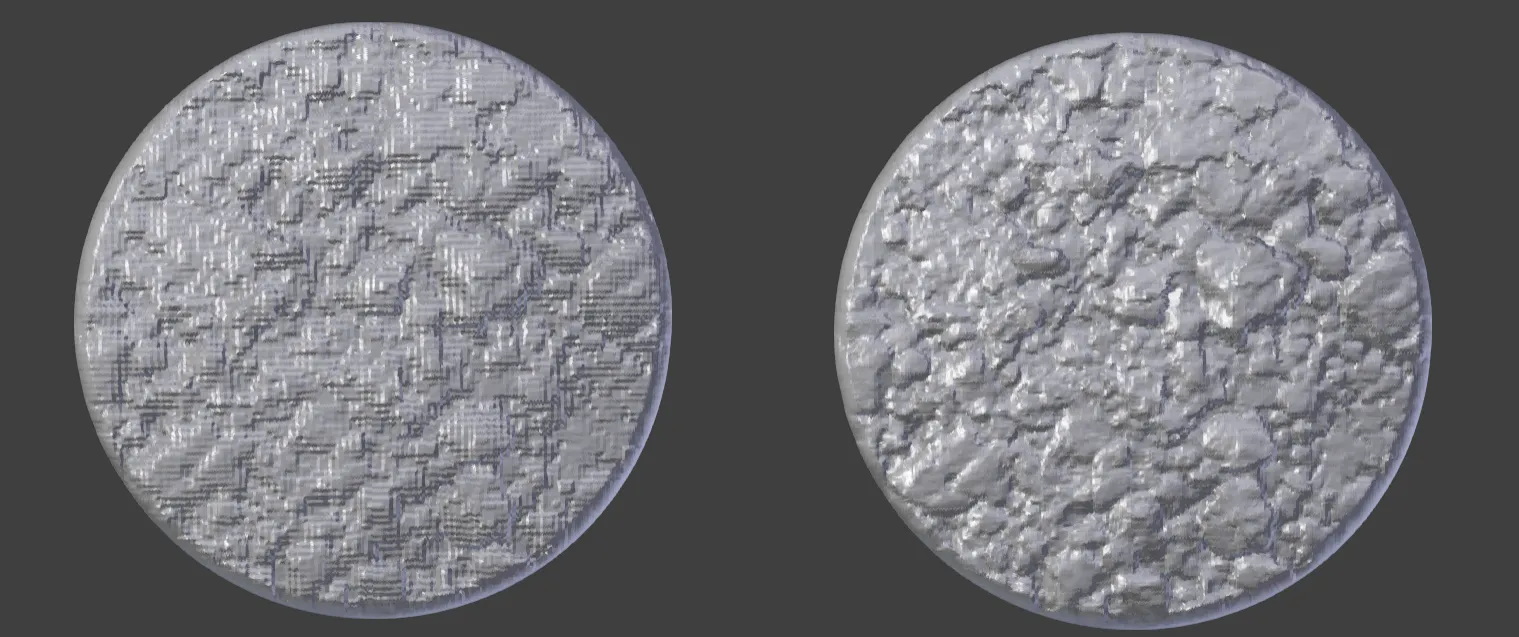
Section titled “Simplified Mode”Turning simplified mode on turns displacement off entirely and just uses the normal map to fake it. This mode is extremely quick and is designed for making display boards and large movement trays where there are dozens of bases on screen at once, but should normally not be needed. You can have this on all the time, or just during transforms.
Distance
Section titled “Distance”Distance controls the maximum gap between topper vertices before displacement. A smaller value produces more geometry and finer detail; a larger value improves performance. Large bases can contain millions of polygons at the smallest distance of 0.1mm. By default this is set to 0.15mm, about twice thickness of a human hair.
Adaptive Quality temporarily uses a lighter topper while you transform a texture or edit displacement, then restores the high resolution topper.
Algorithm
Section titled “Algorithm”Lattice is the default topper layout. Grid is slightly faster and can make right-angled detail crisper, but may show more artifacts on diagonal edges, especially when at 45 degrees to the grid direction. These artifacts are often not visible on the final topper when printing in resin due to light bleed but can occasionally be accentuated on FDM prints when using a 0.2mm nozzle if the slicer decides not to smooth the transition. Rotating the texture or the topper by just a couple fo degrees after it is exported can be surprisingly effective at getting rid of these artifiacts.
Normal map
Section titled “Normal map”Turning normal mapping on fakes the lighting on the topper using a normal map. This allows basemancer to use a lower resolution topper, while retaining a good representation of the underlying geometry. However it can lead to artifacting on areas of high displacement, especially during transforms. Normal maps can also be slightly deceptive as they contain more surface detail than can be exported. Normal maps are calculated from the combined displacement layers which creates additional overhead when there are multiple taxtures on a topper so turning normal maps on on an already high resolution topper can actually slow down displacement changes.
Cached Toppers
Section titled “Cached Toppers”Basemancer caches a copy of the topper in live memory, in your browser, on the server for presets, and optionally in your save file. For large and complex toppers such as curved wall shapes, display boards, terrain tiles, movement trays etc. this can greatly speed up loading as basemancer doesn’t have to recreate the topper. If you are using one of the built in bases basemancer will provide a cached topper at 0.15mm, 0.25mm and 0.4mm resolutions (the performance quicksetting defaults) for the preset morphs. If you choose a custom morph or custom resolution basemancer will need to recreate the topper, which is slower. When you save a base you will be given the option to save a cached version of the topper. Doing this can increase the size of the fille from a few kb to several megabytes.
Exports
Section titled “Exports”The exporter can be slow. It should be much faster than when Basemancer was originally released, but on large bases with multiple decorations it can still take minutes to export a base. Currently you cannot export in the background unfortunately, but I am working on making this possible and reliable. The Manifold exporter is usually the faster of the two as well as being more accurate.
Lighting
Section titled “Lighting”There are two lighting modes - Matcap which is the default and uses baked in lighting that doesn;t support shadows, and High Quality which is more realistic and supports shadows. Realistic and Matcap modes will generally show similar performance. Adding decorations can cause slow downs, especially when transforming the decorations.
Texture layers
Section titled “Texture layers”Basemancer supports up to 8 texture layers per topper. The more texture layers you add the worse the performance will be when transforming the topper. Texture layers that use alpha transparency such as decals and stamps are particularly expensive.