
Lighting
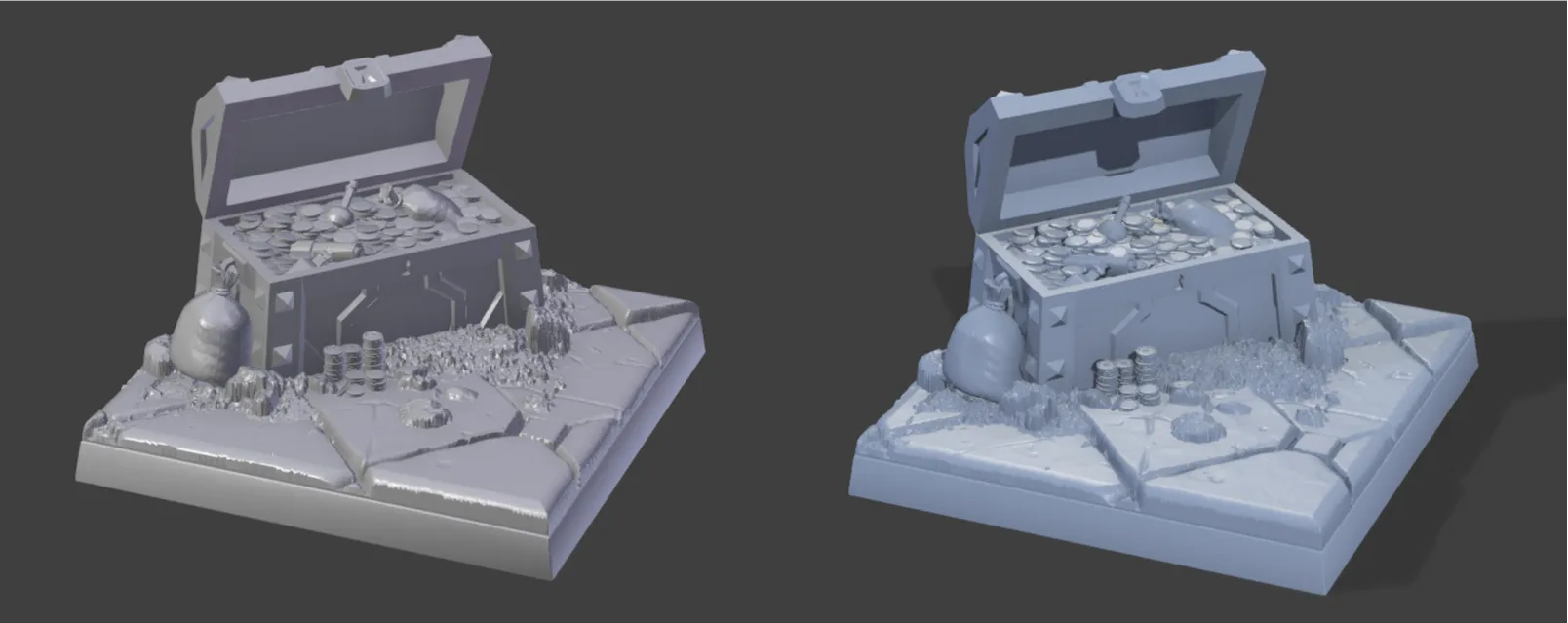
You can change the appearance of the base in the viewport and choose between either Matcap mode for speed, or High Quality Lighting mode for a more realistic effect.
Matcaps give a great surface finish, but because the lighting is baked into the material, objects do not shadow each other, which can make it look a bit unrealistic.
High Quality Lighting mode looks more realistic but can be significantly slower for large bases with lots of decorations.
Matcaps
Section titled “Matcaps”
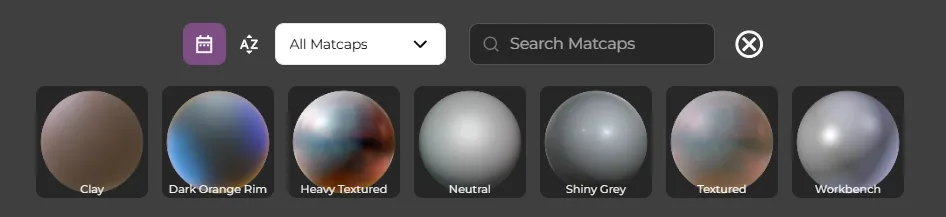
Clicking on the Matcaps button in the bottom bar open the matcap panel. Here you can choose the material of the base when you are in matcap mode. Choose a material and then drag and drop it into the scene.
This will have no effect if you are in High Quality Lighting mode.
High Quality Lighting
Section titled “High Quality Lighting”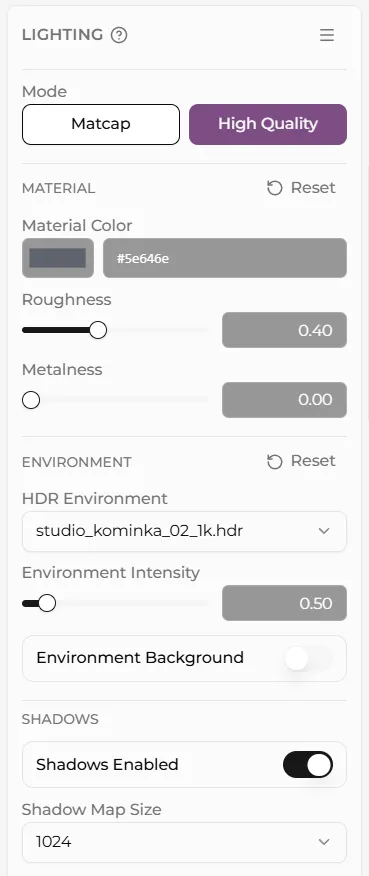
Click on High Quality in the lighting sub panel to turn on High Quality lighting and show the lighting controls.
You can directly control the color of the base as well as the material roughness and metalness here.
You can swap between several different environments, which is an easy way to change the lighting.
The Environment Intensity control controls how much the environment contributes to the scene lighting, while the Environment Background control toggles the background on and off.
You can globally enable and disable shadows and choose the shadow map size. Having shadows on for all three lights can cause lag, especially when transforming decorations.
The Shadow Map Size controls the resolution of the shadows.
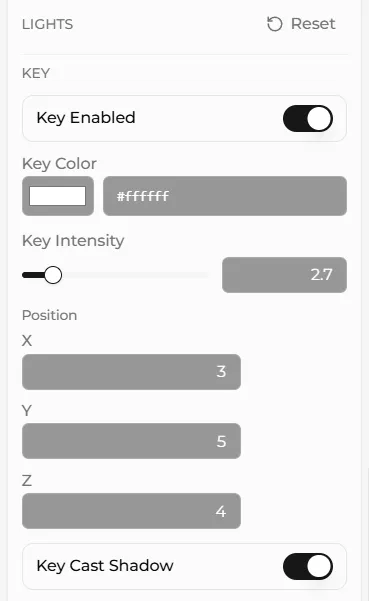
High Quality Lighting mode uses a three point lighting setup consisting of a key (main), fill, and rim (or back) light.
You can control the individual color, intensity and position of all three lights, as well as deciding whether each indiividual light casts shadows.