
Saving and Loading

You need to be signed in to save your base. In the preview version you can only save locally.
Click on the Saves button to open up the saved bases carousel. Click on Save locally and choose a location to save your base. You may be asked whether you want to save a cached version of the topper in the file. This is most useful when you have alarge or custom sized based. For now leave this unticked. If you are on a Chromium based browser then after saving you will get a pop up asking you whether you want to add the folder as a library.
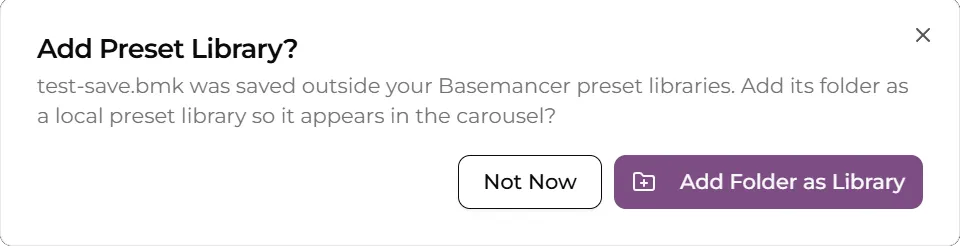
Answer yes and choose the folder you just saved your base in. You may have to give permission for basemancer to write to the folder. Basemancer needs this in order to create thumbnail images so you can preview your base in the carousel. Once you have given permission your folder will now operate as a library and you’ll be able to see any bases you have saved in it, just like you can with textures and decorations.
If you choose not to add your folder as a library, or want to load a base someone has shared with you, click the load from file icon highlighted in green.
