
Generating Multiple Bases
The Variant Generator allows you to create random variants of your bases. It is a very powerful tool for creating consistently styled yet unique bases for an entire army in just a few clicks.
Reset the base by clicking on “Reset base” at the top of the screen.
Open the textures carousel and find the Realistic Concrete Debris 01 texture. Drag and drop it on to the base.
Find the Realistic Brick Debris 01 texture. Drag and drop it into the second texture slot.
These two textures are quite similar and so blend together nicely in most places. Using two similar textures will give us even more variation in the variant generator.
Close the texture carousel and open up the variant generator.
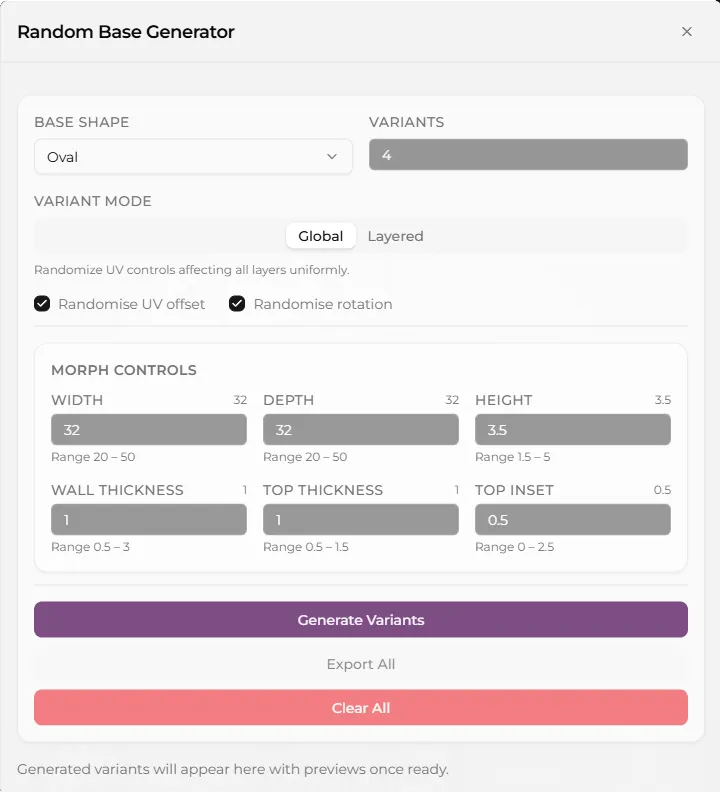
Choose a base shape and the number of variants you want to generate.
Leave the variant mode on global for now. We’ll come back to this later.
Keep Randomise UV offset and Randomise rotation ticked. This will randomise both the position and the location of the texture. Because we are in global mode both textuire layers will be transformed by the same amount.
You can change the base morphs to set its size and shape. Leave these as is for now.
Click on “Generate Variants”.
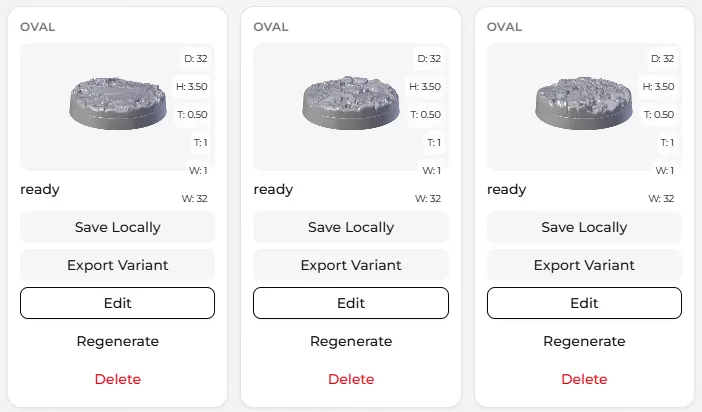
After a few seconds you should see previews of the generated variants.
Click on Edit and then on “Overwrite current viewport base” to load the variant into the viewport.
You can edit the variant, save it and export it as usual.
Click on the Variant Generator button again.
You can choose to save each variant, export it or delete it on the card and you can also choose to export all variants as a .zip file of .stl’s.
Layer mode
Section titled “Layer mode”Reset the base and then drag and drop the Stylized Hand Painted Sand 01 texture into the first slot and the Stylized Pebbles 01 texture into the second slot.
Adjust the two textures until only the pebbles appear above the surface of the sand.
Open up the variant generator and click on “Layered”
In Layered mode the texture layers move independently of each other, so you can get even more variation.
You can also lock individual layers.
Lock the layer with the sand texture on it then click Generate Variants.
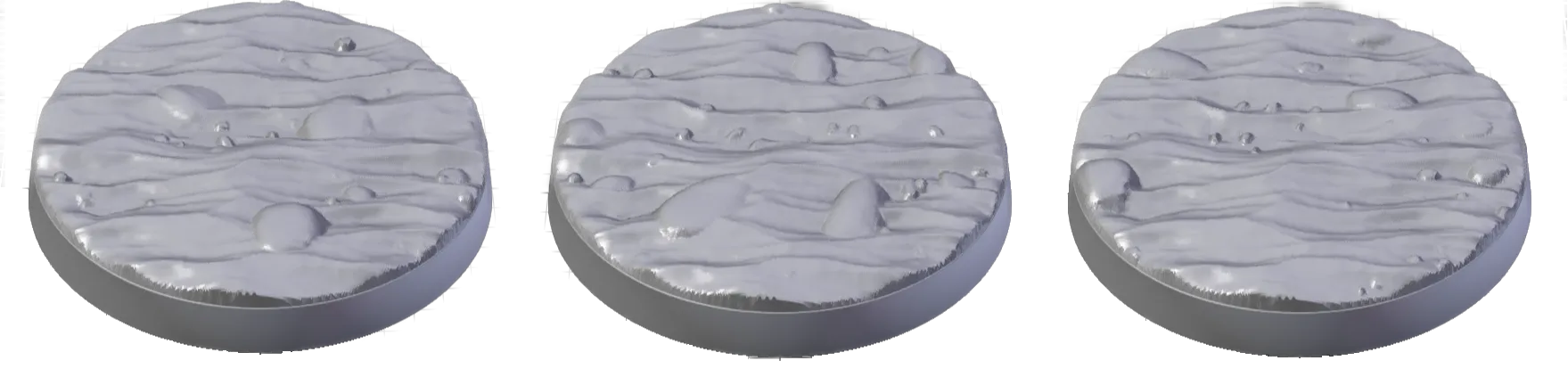
If you hover your mouse over the variants to show the larger preview or edit them you should see that while the pebbles have changed position, the sand is the same.
Walkthrough
Section titled “Walkthrough”Watch a quick walkthrough of the variant generator.