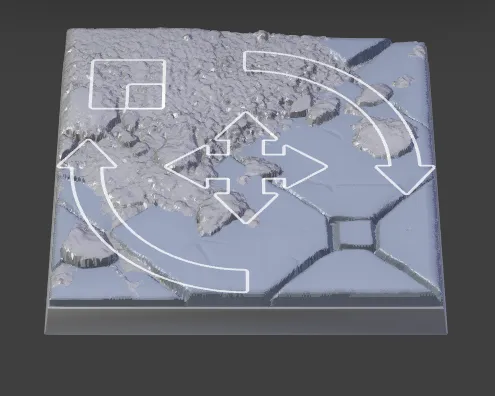
Base Topper

Basemancer uses displacement textures to create the surface of your base. Displacement textures are greyscale images where the light parts correspond to the high parts of your base and the dark parts correspond to the low parts.
Click on the textures icon to see the available textures. Search for “tiles” to find the “Stylized Tiles 01” texture.
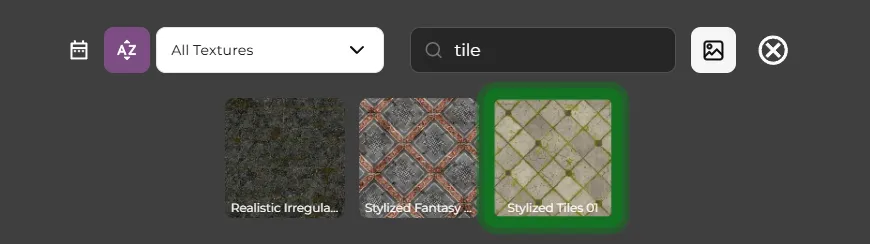
Now drag and drop it onto the base.
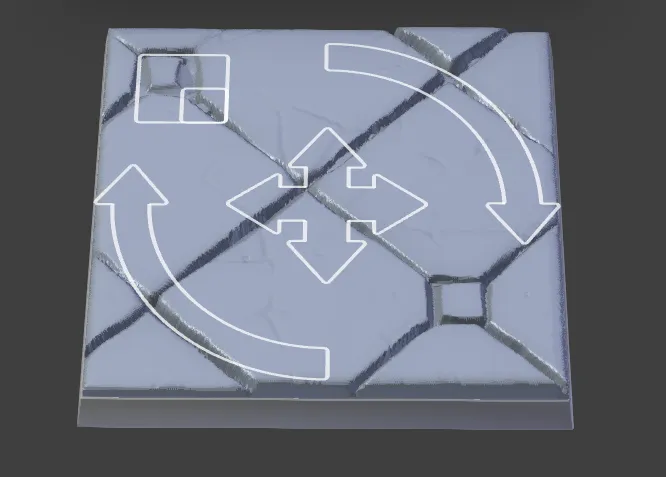
You can move, rotate and scale the texture by clicking and dragging on the controls on the base. Try to get it looking something like the below.
The displacement controls on the right control different aspect of the displacement.

The main control is the Strength control which controls the overall strength of the displacement.

The Height control controls the height offset from the base without affecting the level of the displacement allowing you to create thicker or thinner base toppers.

The Contrast control increases the contrast of the displacement image before it is applied, allowing you to make the contrast between ther highest and lowest part of the topper more pronounced. Be careful with this howver as it is easy to “blow out” the image and end up with the highest parts completely flat which mat not be what you want.

The Gamma control adjusts the gamma of the underlying texture and allows you to increase the distance between the highest and lowest parts of the displacement by “pulling down” from the highest point. This won’t blow out the image like when you increase the contrast but it will squash the lower parts of the displacement.

The Gain control operates in the opposite direction to the gamma control. You can use it to “Pull up” from the lowest parts of the displacement. Like the contrast control you can blow out the image if you set it too high.
You can reset the controls to their defaults by clicking on the reset button. Each texture has its own set of defaults.
Multiple Textures
Section titled “Multiple Textures”You can have up to eight different textures on one base. Textures are independent from each other so they can move, scale and rotate separately and the displacement of one texture doesn’t affect the displacement of the others.
Search for decal in the texture carousel. Decals have transparent backgrounds and by default they don’t tile, so they are useful for adding detail.
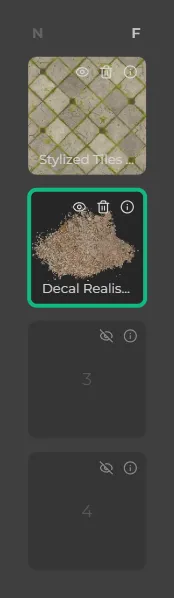
Drag and drop the Decal Realistic Cement Rubble 01 texture into the scene and drop it onto the second layer card. Don’t drop it directly onto the base as that will replace the existing texture.
Drag the texture into one corner, turn the displacement strength up and scale and rotate it until you get something that looks like the below.