Decorations
Decorations are models that you can add to your base and which will be printed out with it. You can add as many decorations to your base as you like and can import your own decorations. You can use this feature to import your own miniatures and join them to the base to print out as a single piece, or just import them to use as a reference while you work.
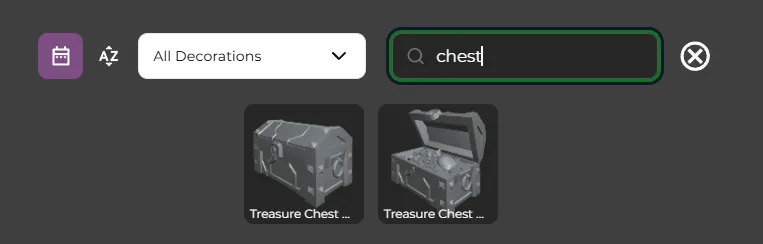
Open the decorations carousel by clicking on the decorations icon. Search for chest and then drag and drop the Treasure Chest Open decoration onto the base.
Click and drag on the chest to move it around. It will stick to whatever is under the cursor.

When a decoration is in the scene the Decoration Toolbar will appear on the left. This has tools for box selecting and transforming your decorations, as well as for choosing whether to transform them in local or global space.

Click on the translate icon to bring up the translate gizmo then click and drag on the arrows to move the chest.
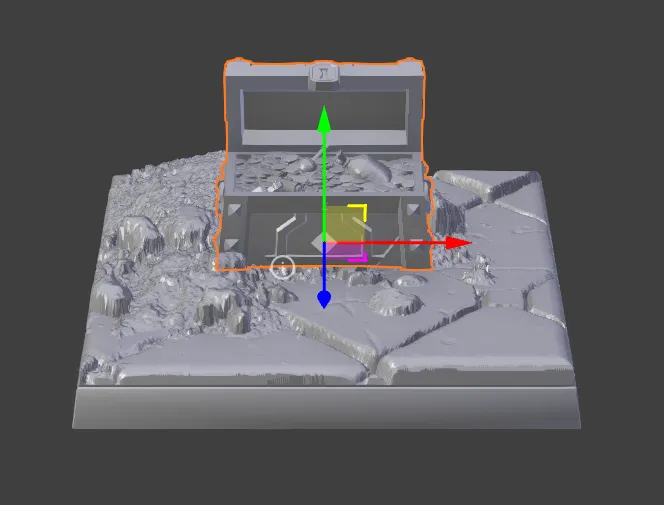

Click on the rotate icon to bring up the rotate gizmo then click and drag on the rotate widget to rotate the chest so it sits diagonally on the base.
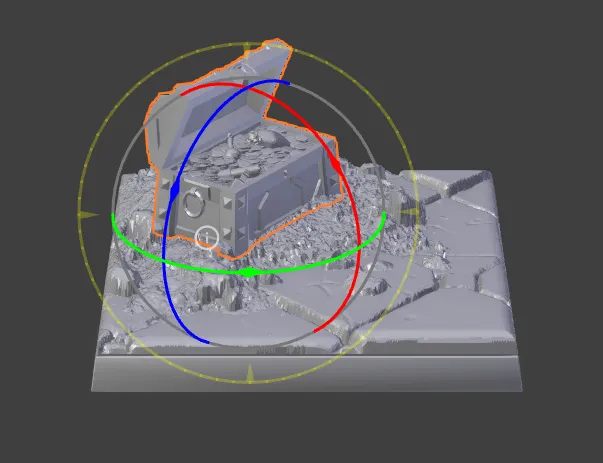

Click on the scale icon to bring up the scale gizmo. Scale the treasure chest up a little bit. Clicking on the white cubes will scale the chest uniformally. The colored cubes will scale it just along that axis.
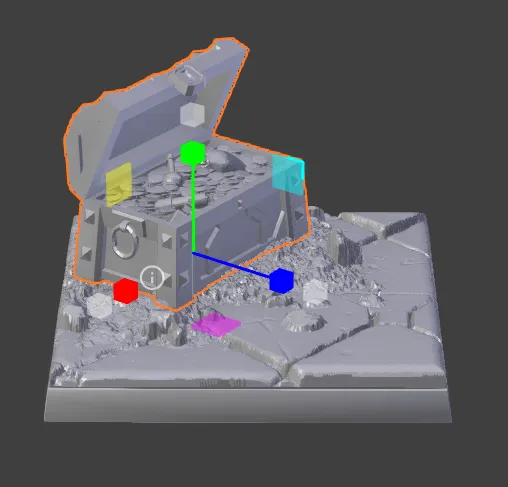

Click on the universal transform gizmo icon. The universal transform gizmo can be used to move, rotate and scale all using a single gizmo, ut it can be a bit fiddly. Use the universal gizmo to finalise the placement of the treasure chest.

The magnet icon switches back to surface drag mode.

The globe icon switches between local and global transform modes.
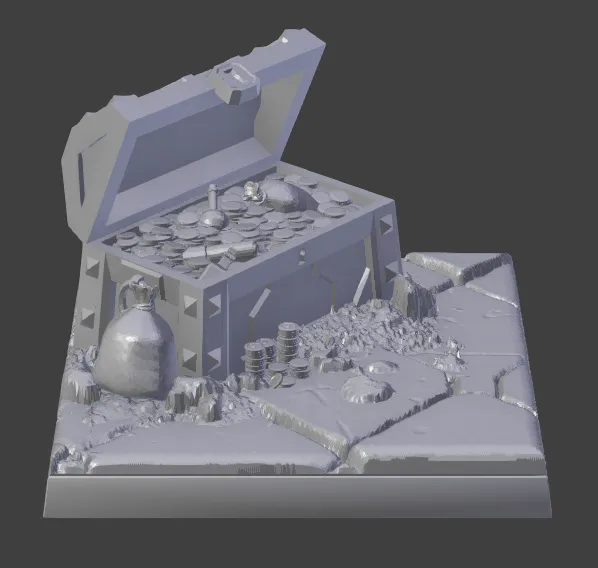
You can add as many decorations as you like. I’ve added a pile of coins and a treasure bag and scaled them up a bit to fit the chest.