
Decoration Libraries

Decorations are models that you can add to your base and which will be printed out with it. You can add as many decorations to your base as you like and can import your own decorations.
You can use this feature to import your own miniatures and join them to the base to print out as a single piece, or just import them to use as a reference while you work.

You can sort your decorations alphabetically or by date added, and also filter them by asset pack, whether they came bundled with Basemancer or are an asset you have imported, and search by name or asset tag.
Individual Decorations
Section titled “Individual Decorations”
If you want to load just a single decoration into the scene you can do so by clicking on the load icon.
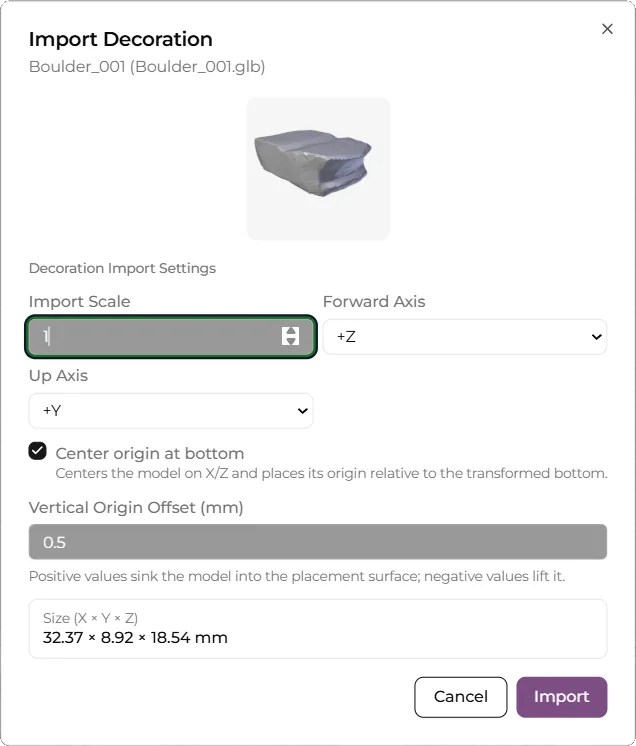
Once you have selected your file you will see the Import Decoration dialog. Here you can see a preview
of your decoration, as well as the size of its bounding box in mm.
The scale control is a multiplier. Depending on where you have got your models from you may need to change this. Usually you will need to either keep it set to 1, or set it to 0.1. Before importing a decoration check that the scale as reported in the dialog is roughly what you are expecting.
If you are importing a model at real life scale, or at a known scale you will need to work out what ratio will produce the correct result.
The Forward Axis and Up Axis settings determine which way is up for your decoration. For most models this will be +Y, but
it is not unusal for it to be +Z which is Blender’s convention.
The Center Origin at Bottom control will make the origin of the object sit at the bottom center of the decoration. The origin is where the move gizmos spawn and is also the point of the decoration that will snap to the base when surface drag mode is engaged.
The Vertical Origin Offset Control adds a little bit of offset so that the decoration will default to sitting slightly under the surface of the base. This is important for everything to fuse together correctly on export.
Library Imports
Section titled “Library Imports”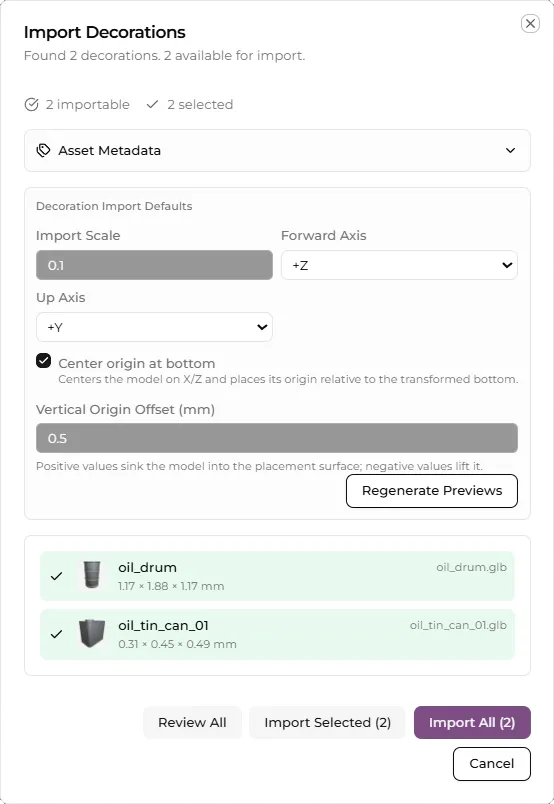
When you import a library rather than an individual decoration you will see the import decorations library dialogue. This will allow you to set defaults for all the assets in the library at once.
Expanding the Asset Metadata will allow you to add tags that can be searched for in the caorusel and set copyright metadata so you can track where your decorations come from. Settings here will be applied to all the decorations you import.
The Decoration Import Defaults mirror those in the individual import dialog. Again, changing settings here will apply them to all decorations in a library. After changing these previews use *Regenerate Previews to update the thumbnail images.
You can choose to edit each decoration individually by clicking on the pencil icon in its individual row, or you can click on Review All to review all the decorations in the folder.
Once you have reviewed your decorations click on Import Selected or Import All to import the decorations.