
Base Bottom

You can set the size and shape of your base by clicking on the base bottom icon in the bottom toolbar.
Base Shape
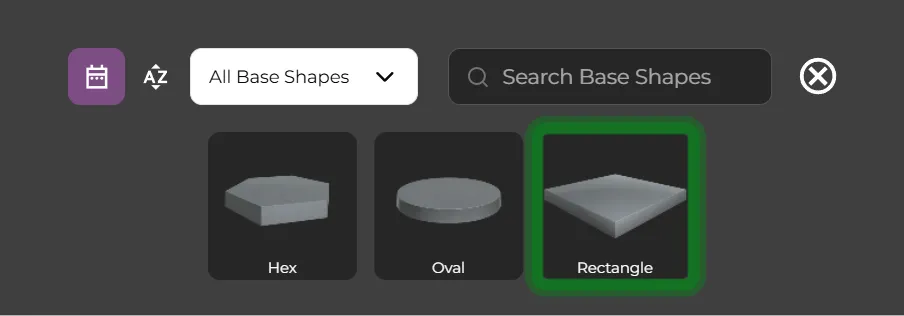
Section titled “Base Shape”To set the base shape click on the Base Shapes icon in the bottom bar.
Drag and drop the Rectangle Base into the scene from the carousel.
Base Size
Section titled “Base Size”Once the base has loaded click on the Base Bottom to bring up the Size controls.
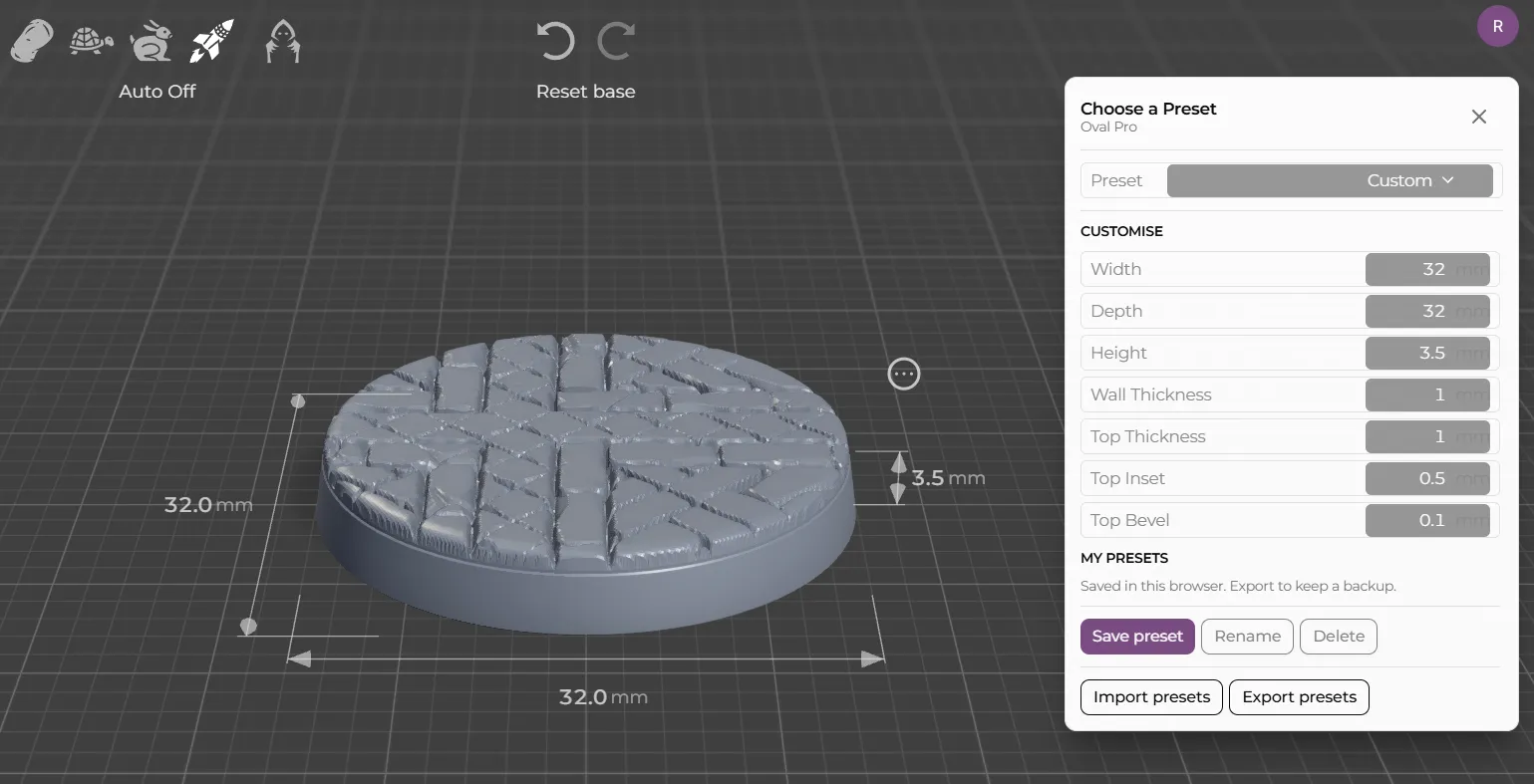
For bundled bases you can choose from a list of preset sizes. There are two sets of sizes, true size bases, and Nott true sized bases, which aim to be the same actual size as Games Workshop’s bases.
When you use a preset size Basemancer will laod a cached version, which is much faster for large bases, than generating a base topper from scratch. You can also save your own presets.
As well as setting the size of your base here, you can also do so by directly clicking on the dimension controls in the viewport.
Select the 40mm Square preset from the dropdown.