
Asset Library Overview
Basemancer stores assets such as decorations, texture sets, base shapes, materials and saves in asset libraries. There are two types of asset libraries - bundled asset libraries that contain pre-made assets included with Basemancer and user asset libraries.
A user asset library is just a folder on your device that contains a bunch of decorations, textures, base shapes, saves etc. When you add a new asset library to Basemancer you are giving Basemancer permission to read that folder, and also to write to it so it can generate thumbnail previews. Basemancer will never modify existing files in a library directory except for basemancer save files (.bmk files) and previews that it has generated.
In the free version of Basemancer users can add asset libraries that contain decorations and saves. Supporters can add their own texture sets, and materials, and soon will also be able to add their own base shapes.
Asset libraries are accessed by clicking on the relevant button in the bottom bar and opening the carousel. All have a set of common controls, while the saved-bases and texture set carousels have some additional controls.

The dropdown menu allows you to filter the carousel by asset pack, bundled assets or user assets. The floppy disk icon allows you to load an individual asset and the bookshelf icon allows you to add and manage libraries.

Clicking on the bookshelf icon will bring up the Library Settings Dialog.
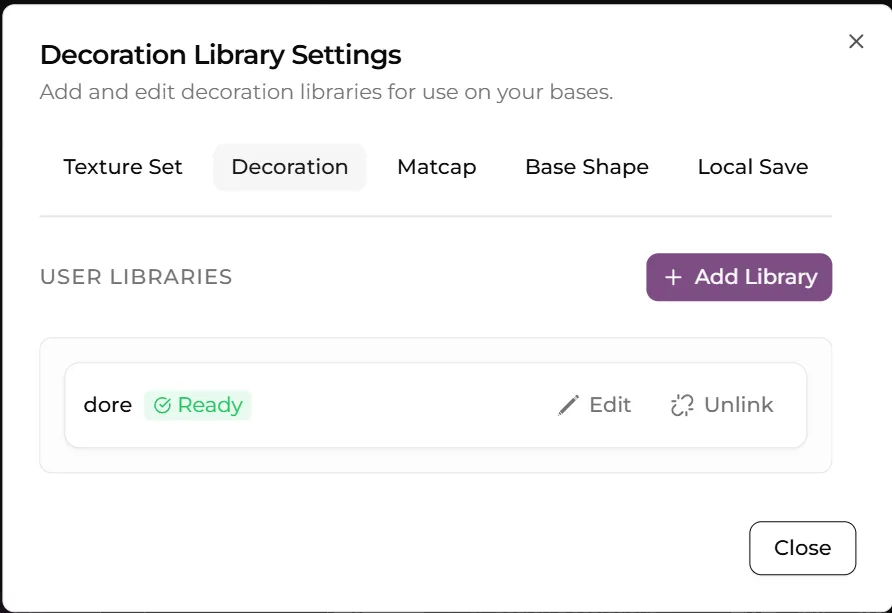
Here you can access existing libraries and add new ones. Clicking on Edit will allow you to edit an existing library. Unlink will remove the library and its contents from your carousel. This will not affect the files themselves.
You will also see messages here about issues with your libraries. You will need to periodically relink libraries as browsers only grant access to folders for a limited period of time. Editing a library also allows you to rescan it for new assets.
Clicking Add Library will bring up a folder picker. Choose the folder where your decorations are saved and confirm. Name your library and click Continue. Basemancer will then scan the folder and generate preview images of the assets in it and save them in the folder. You will need to grant permission for this.
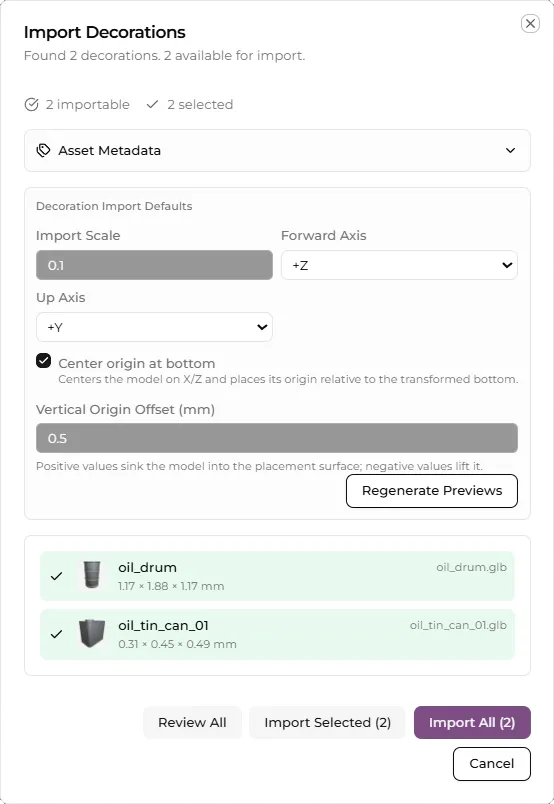
Once Basemancer has generated its previews you will see the library import dialog. The options differ between asset types but they all have an Asset Metadata section where you can record where the asset is from and copyright information, the option to set various defaults for all assetrs in the library and regenerate previews and a review all button. You can also edit individual assets.
Clicking review all will bring up a wizard allowing you to override default settings on a per asset basis and choose whether to import a particular asset.
For information on the individual options see the pages for each asset type.